
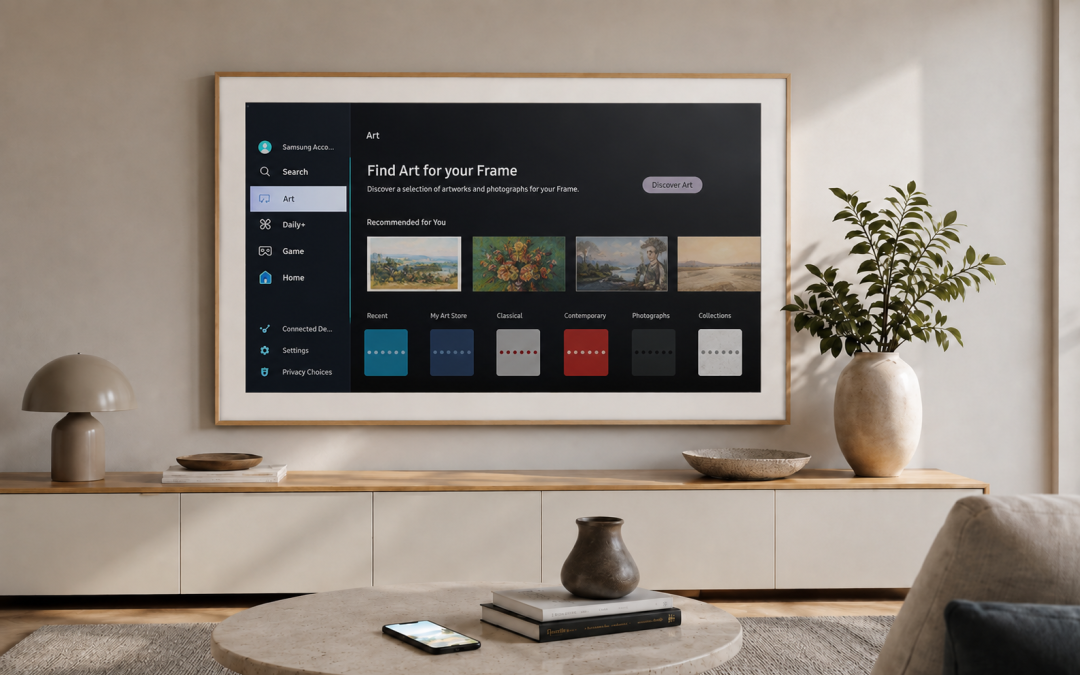
You have had your Samsung Frame TV mounted, it looks the part, and now you want to make the most of the reason many people buy it in the first place: the art function.
A Frame TV can look excellent on the wall, but it will only really feel like framed artwork if the installation and the Art Mode setup are both done properly. Not only does the TV need to sit as close to the wall as possible using the Samsung slim bracket system, but the Art Mode settings need to be set up in a way that suits the room.
Hiding the cables, finding a practical location for the One Connect Box, and getting the TV sitting neatly on the wall are all part of the physical result. But the real art effect comes from understanding Art Mode, SmartThings, your Samsung account, the Art Store, personal photos, mat settings, brightness, colour tone, sensors and frame options.
You may want to use the art features properly, but not know where to start. Many people use the basic art options, play around with it for a short time, and then never really go much further. That is understandable, because it is not always obvious where to go, what to download, what to pay for, or how to make your own photos look good on the screen.
This guide explains how to make better use of the art features on a Samsung Frame TV, especially after it has been wall mounted.
What Art Mode actually does
Art Mode lets a Samsung Frame TV show artwork or personal photos when you are not watching normal TV.
Instead of the TV sitting there as a black rectangle, The Frame can display an image in a way that resembles a picture in a picture frame. That is the main difference between The Frame and a standard wall-mounted TV.
But the image does not automatically look like framed art just because it is on the screen. The picture needs to be adjusted differently to normal TV viewing. Brightness, colour tone, mat settings, frame colour, wall position and room lighting all affect whether it feels like artwork or just a bright TV screen showing a photo.
The physical installation still matters
Before you get the best result from Art Mode, the physical installation matters.
A Samsung Frame TV is not quite the same as mounting a normal TV. The bracket system is different, the TV is designed to sit closer to the wall, and the result people usually want is different.
With a standard TV, the main concern is often viewing height and comfort. With a Frame TV, there is another question as well:
Do you want it to look more like artwork, or do you want it positioned mainly for normal TV watching?
Sometimes those two things are not exactly the same.
If the Frame TV is your main everyday TV, especially if it is a 65-inch, 75-inch or larger model, you still need to think about viewing comfort. Mounting it higher may make it look more like a picture on the wall, but it may not be as comfortable for long TV viewing. Mounting it lower may be better for watching TV, but it may not look as much like artwork.
So the aim is usually a compromise: a position that looks good in the room, but does not make the TV uncomfortable to watch.
Think about the One Connect Box before installation
Depending on the model of Frame TV, you also need to think about where the One Connect Box or connection system is going to go.
Some Frame TVs use a One Connect Box with a thin cable running from the screen to the box. Some newer models may have different connection arrangements. The exact setup depends on the model you have, so it should be checked after you have purchased the TV and before the installer starts mounting it.
If there is a One Connect Box, it normally needs a practical location, usually in a cabinet below or somewhere nearby. If the model needs power behind the TV, that has to be planned differently. Some installations may need a recessed power point behind the TV so the screen can sit closer to the wall.
The goal is to have the Frame TV looking like artwork while still being practical to use as a TV.
Start with your Samsung account and SmartThings
During the initial Samsung TV setup, the TV will usually ask for your Wi-Fi details and may prompt you to sign in or create a Samsung account, often using a QR code.
Do that with your own Samsung account.
The Samsung account should belong to you, not the installer. Your account may be connected to SmartThings, Art Store access, subscriptions, personal photos and device settings.
If you have not already downloaded it, the main app you need is Samsung SmartThings.
What is the SmartThings app?
SmartThings is Samsung’s app for connecting and controlling Samsung devices and smart home products.
For a Samsung Frame TV, SmartThings is useful because it lets you manage more than just basic TV functions. It can help you connect the TV to your Samsung account, control the TV from your phone, access Art Mode features, upload personal photos, choose artwork and adjust some of the display options.
It is worth downloading the SmartThings app before the installer arrives, especially if you want help understanding the setup while the TV is being installed. You do not need to wait until the TV is mounted to download the app.
Search for:
Samsung SmartThings
The app should be by Samsung Electronics Co., Ltd.
You can download it from the Apple App Store or the Google Play Store.
Recommended setup order
A practical order is:
1. Download or open the SmartThings app on your phone.
2. Mount and connect the TV.
3. Connect the TV to your home Wi-Fi.
4. Sign in or create your Samsung account using your own details.
5. Make sure the TV is added properly to your Samsung account and SmartThings app.
6. Open the Frame TV inside SmartThings.
7. Look for the Art Mode or Art section.
8. Choose Samsung artwork, free options, Art Store artwork or your own photos.
The exact menu names can change depending on the model year and software version, so the app may not look exactly the same on every phone or every Frame TV.
Adding your own photos to the Frame TV
One of the best parts of The Frame is that you can use your own photos.
This can work well for:
-
family photos
-
travel photos
-
wedding photos
-
landscape photos
-
personal artwork
-
purchased digital art
-
simple images that suit the room
Personal photos can usually be added through the SmartThings app or by using a USB device connected through the One Connect Box system.
SmartThings method for personal photos
The SmartThings method is usually the most convenient if the photos are already on your phone.
A simple process is:
1. Open the SmartThings app.
2. Select your Samsung Frame TV.
3. Open the Art Mode or Art section.
4. Choose the option to add your own photos.
5. Select the image from your phone.
6. Apply a mat or border if required.
7. Adjust the artwork settings.
8. Save or display the image on The Frame.
If the TV does not show up properly in SmartThings, check:
-
the TV is connected to Wi-Fi
-
you are signed into the correct Samsung account
-
the TV has been added as a device in SmartThings
-
the phone is not using mobile data only
-
the TV software is up to date
-
you are selecting the correct TV if there is more than one Samsung TV in the home
The most important part is making sure the TV is properly added to your Samsung account and SmartThings app. If that has not been done properly, the Art Mode options may not appear the way you expect.
USB method for photos and artwork
The USB method can be useful if the artwork is already saved on a computer or USB drive.
This may suit customers who have:
-
purchased digital art files
-
edited family photos
-
high-resolution landscape images
-
artwork prepared in the correct size
-
images they do not want to transfer through their phone
The USB drive connects through the One Connect Box system where supported.
This is also why the One Connect Box location matters. If the box is hidden somewhere that is hard to access, something simple like using a USB drive becomes more annoying later.
Do you need to pay for Samsung Art Store?
No, you do not need to pay for Samsung Art Store just to use Art Mode.
You can use your own photos, and there are also free artwork options available. But the paid Art Store has a different purpose.
The reason to pay for Samsung Art Store is not just to put any picture on the screen. You may pay for it because you want a more curated gallery experience.
The Art Store can be useful if you want:
-
artwork chosen by style, mood, artist or collection
-
a more gallery-like feel
-
art that looks less like a personal photo slideshow
-
variety without having to find your own images
-
museum-style or curated artwork
-
an easier way to change the look of the room
So the simple way to think about it is:
Your own photos are personal. The Art Store is curated.
If you already have images you love, you may not need a subscription. If you want The Frame to feel more like a changing art gallery, the paid Art Store may be worth considering.
Paid art is more like a streaming service
It is also worth understanding that paying for the Art Store is not the same as buying a framed artwork and owning it forever.
It is closer to a subscription library. While the subscription is active, you get access to a larger collection. If you stop paying, you may lose access to subscription-only pieces.
That does not make it a bad feature. It just means you should know what you are paying for.
What is a mat in Art Mode?
A mat in Art Mode is the border area around the artwork, similar to the cardboard or paper border you might see inside a real picture frame. It gives the image some space around it so it does not always fill the whole screen edge to edge.
Choosing the right mat can be the difference between making the image look more like a real-life framed artwork, rather than just an image on a screen.
Some images look better full-screen. Some look much better with a border around them. It depends on the image, the wall, the frame colour and the room.
Brightness and colour tone matter
Brightness is one of the main reasons a Frame TV can still look like a TV instead of artwork.
If the screen is too bright, it can look less like a framed photo and more like an LED advertising display. If it is too dim, the image can look flat. Colour tone also matters, because an image that is too cool, too warm or too bright may not suit the room.
Art Mode has its own independent settings from the normal TV picture settings. That means you can set the artwork to look softer and more natural when Art Mode is on, without changing the picture settings you use for watching movies, sport or streaming.
This is important because artwork and normal TV viewing are not the same thing. A picture setting that looks good for a movie may not be the right setting for displaying artwork on the wall.
Check the motion and light sensor
Frame TVs use sensors to help Art Mode behave more naturally.
The motion detector can detect movement and turn The Frame on or off in Art Mode. Brightness and colour tone can also be affected by the room’s lighting.
The sensor should not be blocked, and performance can vary depending on the installation and room environment.
The exact sensor position can vary by model, so it is best to check the manual or look for the visible sensor area on that specific TV. On many Samsung TVs, the sensor area is around the lower front edge of the TV, often near the remote-control sensor area, but do not assume it is in the same place on every model.
Practical advice:
Do not block the small sensor area on the front or lower part of the TV with decorations, aftermarket frames, furniture, soundbars, or anything sitting too close to the screen.
This matters because if the sensor is blocked, Art Mode may not respond properly to light or movement.
Choose a frame colour that suits the room
The physical frame colour can make just as much impact as the artwork.
Samsung sells official customisable bezels for The Frame, and the available colours and styles can depend on the TV size and model year. There are also different colour options, such as lighter, darker and timber-style frame finishes.
A lighter bezel may suit a bright room with pale walls. A timber-style bezel may suit warmer furniture or a more natural room. A darker bezel may suit a room where the TV already sits against darker furniture or wall colours.
The point is not that one colour is always better. The point is that the frame, artwork, mat, wall colour and furniture all affect the final result.
Official and aftermarket frame options
Official Samsung bezels are the safest starting point because they are designed for The Frame, but you still need to check compatibility with the exact size and model year.
There are also aftermarket decorative frame options. These can make The Frame look more like a traditional framed artwork, especially if you want a wider or more decorative frame than Samsung’s official options.
The caution is compatibility.
Before buying an official bezel or aftermarket frame, check:
-
TV size
-
model year
-
exact model code
-
whether it suits your wall mount
-
whether it blocks the sensor
-
whether it affects how close the TV sits to the wall
Do not assume all Frame TV accessories fit every Frame TV.
Getting the full Frame TV effect
A Samsung Frame TV has more things to think about than a normal TV wall mount.
You are not only deciding where the TV should sit for watching Netflix or sport. You are also deciding where it looks best as artwork, how close it sits to the wall, where the One Connect Box or connection system goes, how the cables are handled, what frame colour suits the room, and how Art Mode is actually going to be used.
The Samsung bracket system is also different from a typical TV bracket. It can be forgiving in some ways because the TV can be adjusted slightly like a picture frame, but that does not mean the installation itself is simple.
A good Frame TV setup needs to consider:
-
where the TV looks best as artwork
-
where it is still comfortable to watch
-
how close it sits to the wall
-
where the One Connect Box or connection system goes
-
whether cables can be hidden neatly
-
whether the frame colour suits the room
-
whether the Art Mode settings are actually being used
That is why a Frame TV should be planned as both a TV installation and an artwork-style display.
For more detail on the physical mounting side, see our Samsung Frame TV installation guide.
Final thoughts
A Samsung Frame TV can look excellent when it is set up properly. But the best result does not come from the TV alone.
The wall position, bracket setup, One Connect Box location, cable planning, Samsung account, SmartThings app, artwork choice, mat setting, brightness, sensors and frame colour all play a part.
If you only mount the TV and never set up the art features properly, you are probably not getting the full value out of the TV.
If you take the time to set up Art Mode properly, The Frame can look much closer to what it was designed to be: a TV when you want to watch it, and artwork when you do not.
Easy TV installs Samsung Frame TVs across Sydney and Western Sydney, including wall mounting, One Connect Box planning, cable concealment options and practical setup advice.
For related information, see our Samsung Frame TV installation page, TV wall mounting service page, TV wall mount gallery and TV installation guides.